- General information:
- When asked for your username, enter your NetID followed by @aup.edu (example: a123456 [at] aup.edu (a123456[at]aup[dot]edu) for a student, or jsmith [at] aup.edu (jsmith[at]aup[dot]edu) for faculty/staff).
- When asked for your password, enter your AUP NetID password. Make sure to be careful when entering your password, as the system will not immediately correct you if you enter it incorrectly.
- Device-specific information:
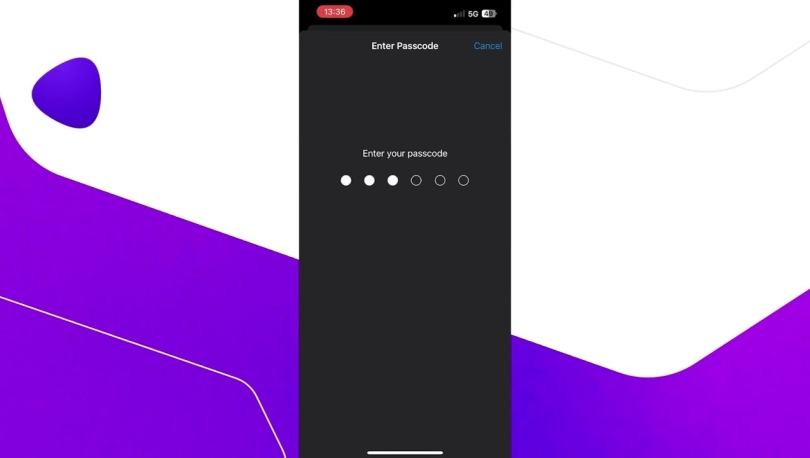
- On an iPhone or iPad, click on Authorize to allow the configuration file to download. Then, open the Settings app, and select Profile Downloaded. Click on Install, then follow the instructions. After you've entered your username and password, after tapping OK, your device will be configured to connect to eduroam whenever it is available.
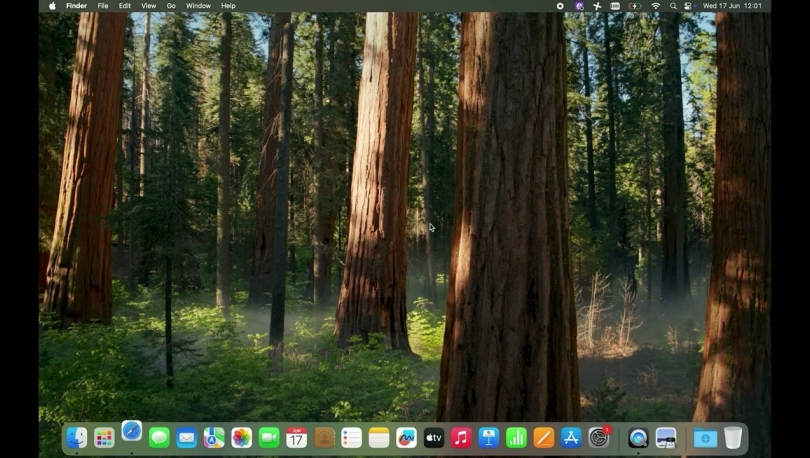
- On an Apple computer (such as a MacBook), once the file has downloaded, double-click the downloaded file.
- If the System Preferences app opens, follow the instructions on-screen to set up eduroam.
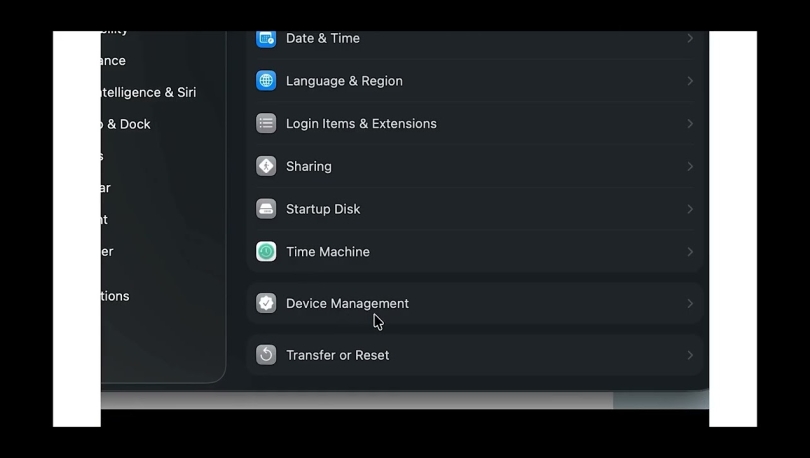
- If your computer has a System Settings app, open it, go to the Privacy and Security section, click on Profiles, choose the eduroam profile, and follow the instructions on-screen to set up eduroam.
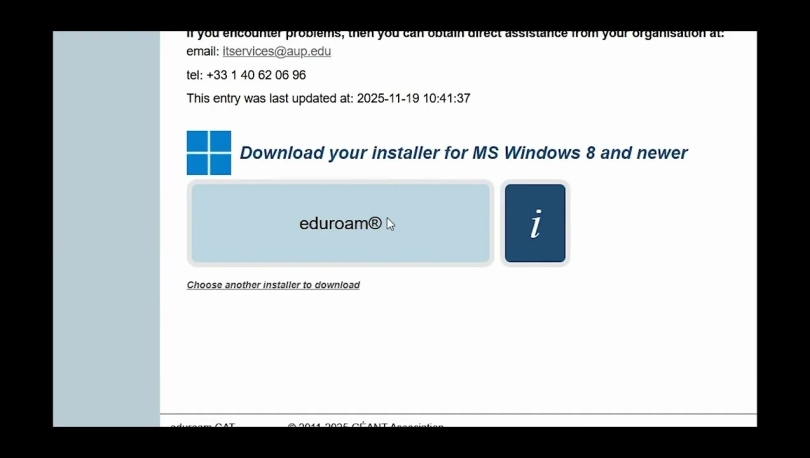
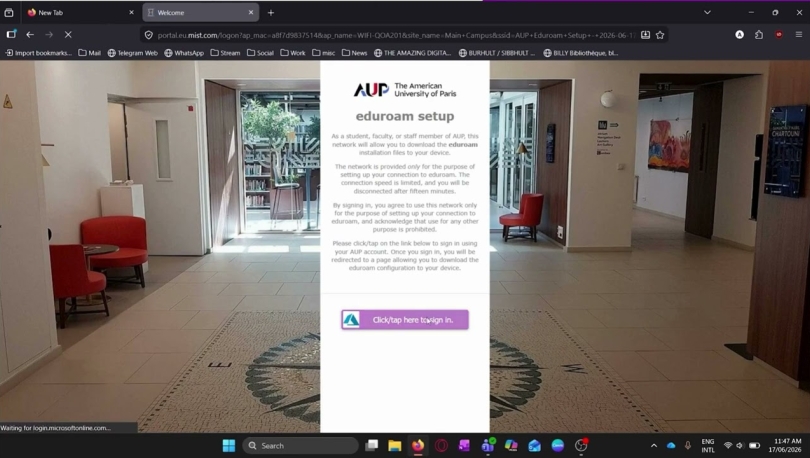
- On a Windows computer, the link will download an installation program. Launch the program, and follow the on-screen instructions.
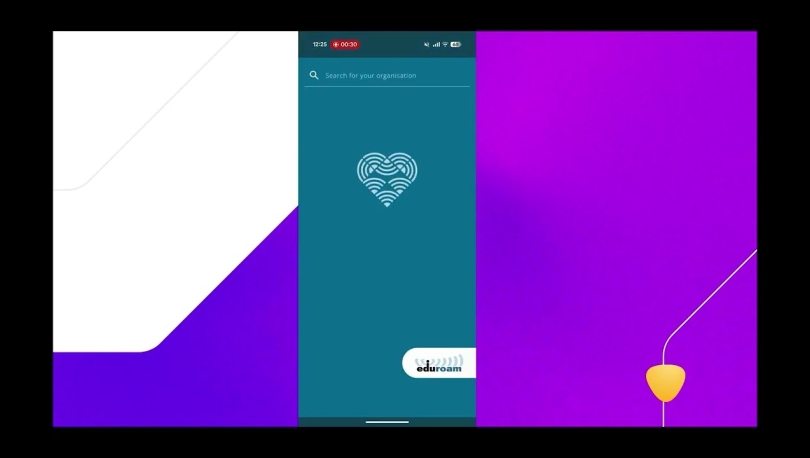
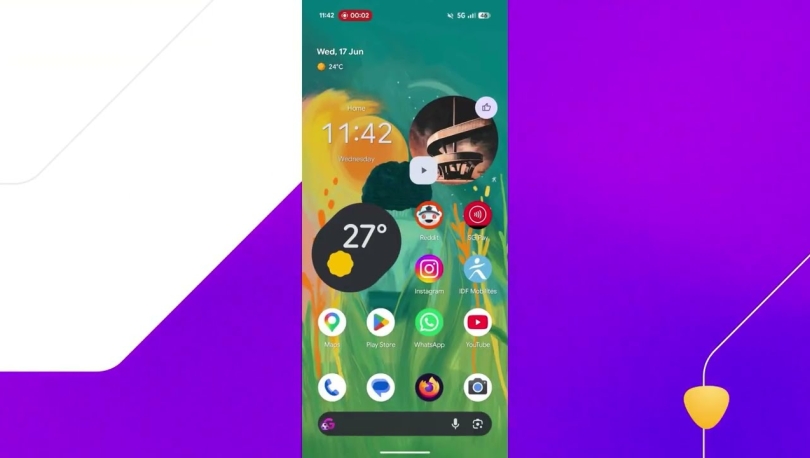
- On an Android phone, you will be provided a link to download the geteduroam app. Once you have installed the app, search for The American University of Paris, and follow the instructions.
If you cannot access the link above because you do not have Internet access other than eduroam, please contact IT Services. Our staff will be able to help you set up eduroam on your device.
Connecting to eduroam - visitors to AUP
If you are member of another educational institution who has already set up eduroam access, your device should automatically connect to the eduroam network on our campus. If this doesn't occur, please verify that your password is correct.
If you have not yet configured eduroam, there are two options:
- Go to cat.eduroam.org, click on the blue button that says "Click here to download your eduroam installer", and search for the name of your home institution in the list. If you find it, click on it, and follow the instructions.
- If your university is not listed in the list on the web page mentioned above, your home institution does not participate in the Eduroam CAT program, so you will need to configure eduroam manually. You may be able to connect by just selecting the eduroam wireless network on your device, using your academic e-mail address as your username, and your regular academic password as your password.
Note that AUP cannot provide support for issues related to your login being rejected. Any issues related to your connection to eduroam must be directed to your home institution's IT support team.
When connecting to eduroam at AUP, you are required to comply with our University Information Technology Policies. This policy applies to all users of AUP Information Technology (IT) resources regardless of their relationship with the University and irrespective of whether those resources are accessed on- or off-campus.